
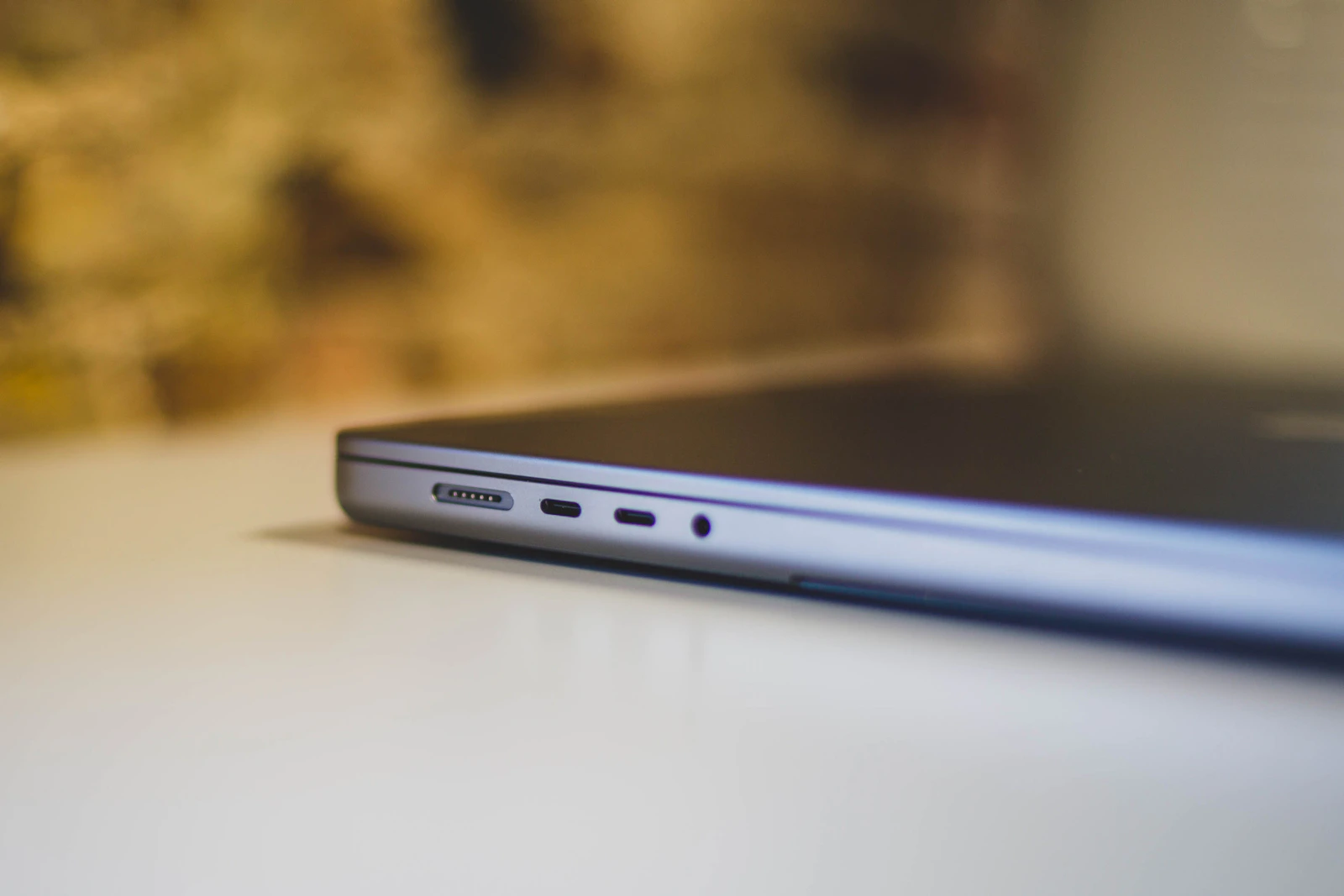
A refurbished computer can deliver strong everyday performance for less than a comparable new system, but the word refurbished does not guarantee the same inspection, parts, warranty or return protection from every seller. One device may have been restored by its manufacturer and tested to a documented standard; another may have been cleaned, reset and listed by an independent marketplace seller. The difference matters because a computer can look clean while hiding a weak battery, worn storage drive, damaged ports, activation lock or an operating system that is no longer supported.
As an Amazon Associate, Winomax earns from qualifying purchases.
Browse refurbished computer options on Amazon
Refurbished laptops
Refurbished desktops
Refurbished mini PCs
Table of Contents
- 1. Understand refurbished, used and open-box computers
- 2. Find out who refurbished the computer
- 3. Check model age and operating-system support
- 4. Match processor, memory and storage to your work
- 5. Inspect the battery, screen, keyboard and ports
- 6. Check activation, licenses and data security
- 7. Read the warranty and return policy
- 8. Calculate the real cost of ownership
- 9. Choose a laptop, desktop or mini PC
- 10. Inspect the computer during the return window
- 11. Choose by budget and use case
- 12. A practical pre-purchase checklist
- 13. Frequently asked questions
- Our verdict
- Sources and further reading
1. Understand refurbished, used and open-box computers
A used computer is simply a device that has been owned or operated before. It may be fully functional, but the seller may not have tested every component or replaced anything. An open-box computer may have been returned, displayed or opened without significant use, but the term does not guarantee a particular condition. A refurbished computer should have gone through some form of inspection, repair, cleaning, testing or restoration, but the exact process varies by seller.
That variation is the first risk to understand. Consumer Reports notes that sellers do not all define refurbished in the same way. A manufacturer-certified program may document testing and replacement parts, while an independent seller may use a much narrower process. Do not assume that the word refurbished means the battery is new, the screen is flawless, the storage drive has been replaced or the computer includes a full manufacturer warranty.
Ask what happened to the device before it was listed. Was it returned by a customer, traded in, leased to a business, used as a display model or repaired after a fault? Was the data securely erased? Were defective components replaced? Was the operating system reinstalled and activated? A seller that can explain the process clearly is easier to evaluate than one that relies on a vague grade such as excellent or like new.
Understand the condition grade separately from the technical condition. Cosmetic grades usually describe scratches, dents, screen marks and other visible wear. They do not automatically tell you whether the battery holds a charge, the fan is noisy, the SSD is healthy or the USB ports work. Read the grading definitions and ask for actual photos of the computer you will receive when the listing uses a condition grade that affects price.
Refurbished does not necessarily mean certified. Certification may come from the manufacturer, a named refurbisher or a third-party program, and the standards can differ. Ask who performed the inspection, what tests were run, which parts may have been replaced and who is responsible if the computer fails. If the seller cannot answer, compare a different listing.
2. Find out who refurbished the computer
Manufacturer-refurbished computers are often the easiest category to evaluate because the brand publishes its process and warranty terms. Apple, Microsoft and Dell each operate refurbished or outlet programs with their own eligibility rules, grading, testing and support. Those programs are not identical, so compare the specific product page and warranty rather than assuming every manufacturer offers the same coverage.
An authorized or established independent refurbisher can also be a reasonable option. Look for a business name, physical contact information, a clear testing checklist, a written warranty, a return address and support that can identify the exact model. Some refurbishers specialize in business-class laptops returned from corporate leases. Those machines may offer durable construction and useful ports, but they may also have worn batteries, keyboard shine or cosmetic marks from years of use.
Marketplace seller-refurbished listings need closer review. The marketplace may provide payment and dispute tools, but the individual seller may be responsible for inspection and warranty service. Check the seller’s history, recent reviews, return terms and the exact wording of the condition description. Look for reviews that discuss the same computer category and seller, not just general feedback about shipping.
Be cautious when a listing uses stock photos only, provides no model number, hides the seller identity or offers a price that seems disconnected from the computer’s age and specification. The Federal Trade Commission advises online marketplace shoppers to review seller information, item descriptions, photos, shipping costs and return policies. It also recommends safer payment methods such as credit cards or protected payment systems. Keep the listing and seller messages until the return period ends.
Ask whether the computer includes original or compatible accessories. A missing charger can create a meaningful extra cost, and a low-quality third-party power adapter may not provide the correct wattage or safety protections. Check whether the keyboard layout, power cord, stylus, dock or other accessories match the model. A listing photo may show accessories that are not included in the actual package.
3. Check model age and operating-system support
The model year matters because processor generations, memory standards, ports, battery design and operating-system support change over time. Do not rely on a seller’s phrase such as latest generation or high performance. Ask for the exact manufacturer model number and processor model. Search the manufacturer’s support page for the original configuration, technical specifications and compatible operating systems.
For Windows computers, operating-system support is especially important in 2026. Microsoft ended standard Windows 10 support on October 14, 2025. Windows 10 computers still turn on and run, but they no longer receive regular security updates or technical support through the standard lifecycle. Eligible devices may have options such as Windows 10 Consumer Extended Security Updates, but that is a limited bridge rather than a reason to ignore the computer’s long-term compatibility.
Before buying a refurbished Windows PC, confirm that its processor appears on Microsoft’s supported processor list and that the machine can meet Windows 11 requirements. These include a compatible processor, TPM 2.0, UEFI firmware with Secure Boot capability, sufficient memory and storage, and compatible graphics. The published minimums are a baseline for installation, not a promise of comfortable performance. A computer that barely meets the minimum may still feel constrained with modern apps and several browser tabs.
Do not accept a seller’s claim that Windows 11 is installed as proof that the hardware is officially supported. Some sellers install an operating system on hardware that does not meet Microsoft’s requirements. Ask for the exact CPU model and confirm eligibility with Microsoft’s current compatibility information. If the machine cannot run a supported operating system, factor in the security and usability limitations before you consider it.
For Macs, check the exact model identifier and the latest macOS version it supports. Older Macs may continue to run, but they may no longer receive the newest operating-system features or security updates. Check the model against Apple’s current compatibility information and confirm that the apps you need still support that version. A low purchase price can be poor value if the computer is already near the end of software support.
Model age also affects repairability. A laptop with soldered memory may not allow a future RAM upgrade. A compact desktop may use a proprietary power supply or storage format. A thin design may have a battery that is expensive to replace. Find the manufacturer service manual or specifications before buying if you expect to upgrade memory, storage, Wi-Fi or the battery.
4. Match processor, memory and storage to your work
Start with the work you need the computer to do. Web browsing, email, documents and video calls place different demands on a machine than large spreadsheets, software development, photo editing, video production or modern games. A computer that is adequate for simple schoolwork may feel slow when you open several demanding applications. Choose the configuration for your actual workload, not the lowest advertised price.
Processor names can be confusing because one product family may include several generations and performance levels. Compare the exact model number, release generation, core count and benchmark results from reputable sources when needed. Do not assume that a higher clock-speed number or a familiar brand name means the processor is faster. A newer midrange chip may outperform an older high-end chip in some tasks, while a workstation processor may still be useful for specialized workloads.
Memory affects how many applications and browser tabs can stay active without excessive swapping to storage. Check both the installed amount and whether it can be upgraded. Many current laptops solder memory to the board, so the amount you buy may be the amount you keep. A device with 8GB may handle light tasks, but users who multitask heavily, edit media or run development tools may benefit from more. Treat the manufacturer’s maximum memory specification as a hard limit.
Storage capacity determines how much room you have for the operating system, applications, documents, photos and project files. An SSD is generally preferable to an older mechanical hard drive for everyday responsiveness. Ask whether the SSD is NVMe or SATA when that distinction matters for your workload, and confirm the capacity. A 256GB drive can fill quickly if you keep large media files or games locally. A larger drive may be worth the price difference if the storage cannot be upgraded.
Check whether the storage is replaceable and whether the computer has an accessible slot. Some laptops use proprietary connectors or have storage soldered to the board. If the drive is replaceable, ask whether the refurbisher installed a new drive or retained the original. A seller should be able to explain the condition and warranty coverage of the storage device.
Graphics requirements depend on your use. Integrated graphics may be sufficient for everyday office tasks, streaming and light creative work. Dedicated graphics can matter for gaming, 3D work, video effects and some engineering applications, but it adds cost, power use and heat. Check the exact GPU model and memory rather than relying on a generic label such as graphics ready.
| Component | What to verify | Why it matters |
|---|---|---|
| Processor | Exact model, generation and supported OS | Performance and future software compatibility |
| Memory | Installed amount, upgradeability and maximum | Multitasking and useful service life |
| Storage | SSD type, capacity and replacement options | Responsiveness, capacity and repair cost |
| Graphics | Exact integrated or dedicated GPU | Creative, engineering and gaming workloads |
| Display | Resolution, brightness, panel type and condition | Daily comfort and visual quality |
| Ports | USB, USB-C, HDMI, audio, network and charging | Compatibility with existing accessories |
5. Inspect the battery, screen, keyboard and ports
A laptop battery is a consumable component. A refurbished laptop may look excellent while its battery has lost a meaningful amount of capacity. Ask for the battery health or capacity report, cycle count when available, and whether the battery is original or replaced. Find out whether the warranty covers battery failure and whether it excludes normal capacity loss. If the seller will not provide any battery information, price the computer as though a replacement may be needed.
On a Mac laptop, Apple provides Battery Health information in System Settings and a cycle-count report in System Information. Apple explains that cycle-count limits vary by model and that battery condition can be reported as Normal or Service Recommended. Use the model-specific information rather than applying one cycle-count threshold to every Mac. A battery that reports Service Recommended should be treated as a likely near-term service cost.
For a Windows laptop, ask the seller for a battery report or test result that compares full-charge capacity with design capacity. The Windows powercfg battery report can provide useful information on supported systems, but the report is only one diagnostic. Battery runtime also depends on screen brightness, processor load, battery temperature and background activity. If possible, test the laptop unplugged during the return period.
Inspect the screen on a plain light background and a dark background. Look for dead pixels, bright spots, pressure marks, flicker, uneven backlighting, scratches and color changes. Check the hinge for looseness and listen for creaking. A touchscreen should respond across the full area. If the listing describes a grade that allows screen marks, ask for photographs and decide whether the defect will bother you every day.
Test every key, the trackpad or mouse buttons, webcam, microphone, speakers, headphone jack, Wi-Fi and Bluetooth. Check the USB ports, USB-C charging, HDMI, SD-card slot, Ethernet and any proprietary connector. A port that works only when the cable is held at an angle may indicate damage. Connect a known-good accessory and test data transfer, display output and charging where relevant.
Inspect the case, base, feet, vents and fan openings. Look for cracks, missing screws, bent corners, swelling around the battery area, liquid residue and signs of repair. A small cosmetic scratch may be acceptable at a lower price, but a swollen battery, damaged hinge or liquid-corrosion concern is a reason to stop and ask for professional inspection. Do not open a sealed device unless you are qualified and the warranty allows it.
Confirm that the charger is included and matches the required wattage and connector. A low-wattage adapter may charge slowly or fail under load. For USB-C charging, check whether the computer supports the supplied charger and whether it can charge through the port you intend to use. Ask whether the adapter is original or a compatible replacement and whether it is covered by the warranty.

6. Check activation, licenses and data security
A computer can be physically sound and still be unusable because it is locked to a previous owner or organization. For a Mac, confirm that Activation Lock has been removed and that the computer can be activated with your own Apple Account. Apple explains that Activation Lock can remain enabled after a remote erase. If setup asks for a previous owner’s Apple Account, do not complete the purchase until the seller resolves the lock.
For business computers, ask whether the device is still enrolled in mobile device management, Apple Business Manager, Windows Autopilot or another organization’s management system. A computer that displays a Remote Management screen during setup may still be assigned to a company or school. The seller should release the device from the organization’s management system before you pay or before the return period expires. A factory reset alone may not remove organizational enrollment.
For Windows PCs, check that the installed edition is activated and that the license is legitimate for the device. Open Settings and review the Activation page. Ask the seller whether the license is an OEM license tied to the hardware, a retail license or a volume license. Avoid listings that rely on a suspiciously cheap product key or promise activation through an unofficial tool. A genuine activation message does not replace a clear statement of license rights.
The computer should arrive with a clean operating-system installation and no previous user accounts, files or management software. Ask what data-wiping process the refurbisher uses and whether it follows a documented sanitization procedure. A reset that leaves old accounts or remote-management profiles is not enough. If you receive a device with someone else’s data, stop using it and contact the seller rather than exploring private files.
Check firmware and startup security. A BIOS or UEFI administrator password can prevent you from changing settings, booting from recovery media or reinstalling the operating system. Ask the seller to confirm that no unknown firmware password remains. On a Mac, verify that the computer can complete setup without an unknown firmware password or Activation Lock. These checks are easier before the return period expires.
If the computer was previously owned by a business, confirm that the asset tag, serial number and ownership status are consistent with the listing. A seller should be able to explain the source of the equipment and confirm that it is authorized for resale. Avoid a device that appears to be reported lost, stolen or still controlled by an employer or school.
7. Read the warranty and return policy
A warranty is only as useful as its written coverage. Check the length, the parts covered, exclusions, claim process and who pays for shipping. A seller warranty may cover hardware defects but exclude batteries, cosmetic wear, accidental damage or software problems. A manufacturer warranty may have expired or may not transfer to a second owner. Ask for the exact warranty document before buying.
The Federal Trade Commission advises consumers to read warranty terms before purchase and keep a copy of the warranty and receipt. Check who handles repairs, whether parts and labor are included, whether the seller repairs or replaces the computer and whether you must pay to ship it back. If a seller makes a verbal promise about battery condition or replacement parts, ask for that promise in writing.
Return rights and warranty coverage are different. A short return window may let you send the computer back if it does not match the listing, while a longer warranty may cover a hardware failure later. Check whether the return window begins on the order date or delivery date, whether the product must be in original packaging and whether restocking or return-shipping fees apply. A refurbished computer is heavy enough that return shipping can be expensive.
Manufacturer programs illustrate why it is important to read the current terms. Apple’s certified refurbished store publishes its own warranty and return conditions. Microsoft’s Certified Refurbished program lists model-specific coverage and return rules for eligible products. Dell Outlet explains its refurbished grades, testing process and support. Those examples do not guarantee the same terms from a marketplace seller or another refurbisher.
If the computer is for work or school, ask how quickly the seller can provide support. A machine that fails during a deadline can cost more than the price difference between refurbished and new. Consider whether you can borrow another computer, whether the seller offers expedited replacement and whether local service is available. Warranty duration is important, but response time and parts availability also matter.
8. Calculate the real cost of ownership
Compare the refurbished price with the price of a new computer that has similar performance, memory, storage, display quality and warranty. Do not compare a refurbished high-end model with a new entry-level model only by processor name. Look at the exact tasks you need to perform and the age of the components. A previous-generation computer can be good value, but only if it has enough support life remaining.
Add the cost of likely repairs and missing accessories. A battery replacement, new charger, larger SSD, additional memory, replacement keyboard or screen repair can erase the initial discount. Include sales tax, shipping, setup, software licenses, a dock or adapter and any subscription required by the seller. If the battery health is not disclosed, include a realistic replacement allowance in your comparison.
Consider upgradeability before paying more for a low configuration. If memory is soldered, the amount installed now may be permanent. If the SSD is replaceable, you may be able to add storage later, but the drive and labor still cost money. If a laptop uses proprietary parts or is difficult to open, upgrades may not be economical. Check the service manual and parts availability rather than assuming every computer can be upgraded.
Energy use is usually a smaller part of the cost than repairs and replacement, but it can matter for a desktop that runs all day. Compare the power adapter or power supply rating and the device’s expected use. A more powerful workstation may be worthwhile for demanding tasks, but it may be unnecessary for browsing and documents. The goal is to buy enough performance without paying for hardware you will not use.
Estimate the likely period you will keep the computer. A refurbished system with two years of useful support remaining may be a good short-term solution, but it may not be the best value if you need it for a five-year course or business plan. A newer refurbished model with a stronger warranty may cost more upfront and less over the time you own it.
9. Choose a laptop, desktop or mini PC
A refurbished laptop offers portability and an all-in-one screen, keyboard and battery, but it has more components that can wear: hinges, display, keyboard, trackpad and battery. Inspect each carefully. A laptop is a good fit if you move between rooms, travel or need a single device for work and school. It may cost more than a desktop with similar processing power.
A refurbished desktop can provide more performance per dollar and may be easier to upgrade. Check the case, motherboard, power supply, cooling fans, storage and graphics card. Confirm that the computer includes the power cord and that it supports the monitor connections you need. A desktop may be a better fit for a fixed home office, but it does not include a monitor, keyboard or mouse unless the listing says so.
A mini PC can save desk space and power, but its upgrade options vary. Some models allow memory and SSD replacement, while others have soldered components. Check cooling and ventilation because a compact case has less room to dissipate heat. Confirm that the mini PC includes a power adapter and has enough USB, display and network ports for your setup.
For an Apple desktop, check the exact generation and configuration. A used 24-inch M1 iMac, for example, has model-specific memory and port limitations that should be evaluated before buying. Our guide to buying a used 24-inch M1 iMac explains how to check the display, configuration, ports, Activation Lock and total cost. Use it for that model rather than applying its specifications to every Mac.
10. Inspect the computer during the return window
When the computer arrives, photograph the packaging and the device before removing protective material. Compare the serial number, model number, processor, memory, storage and accessories with the listing. If the delivered configuration differs, contact the seller immediately and keep the packaging. Do not wait until the last day of the return window to report a mismatch.
Start the computer and complete the initial setup. Check that the operating system activates, that no previous owner account is required and that no organization management screen appears. Run system updates and verify that the device is eligible for supported updates. If a seller promised a clean installation, confirm that the setup process begins without old user data.
Test the display, keyboard, trackpad, webcam, microphone, speakers, Wi-Fi, Bluetooth, charging and every port you expect to use. Run the manufacturer’s built-in diagnostics if available. Check battery health and cycle count where supported. Listen for unusual fan noise, coil whine or clicking from a mechanical drive. A short test cannot prove that a computer will never fail, but it can identify many immediate problems.
Check the storage health with the manufacturer’s utility or a reputable diagnostic tool. Review the SMART status where supported, but do not treat a single status line as a complete guarantee. Confirm that the SSD capacity matches the listing and that the computer does not show disk errors. If the seller has installed a new drive, ask for the part details and warranty.
Keep a record of the seller’s promises, serial number, diagnostics and any defect you find. If the machine is not as described, use the return process before the deadline. Do not attempt a repair or open the case until you understand whether doing so affects the warranty. If you decide to keep the computer, create recovery media and a backup before relying on it for important work.
11. Choose by budget and use case
For basic browsing, email and documents, a recent refurbished laptop with a supported operating system, an SSD, adequate memory and a healthy battery may be a practical choice. You do not need a workstation-class processor for simple tasks. Prioritize reliability, screen condition, keyboard comfort, Wi-Fi and warranty over a high-end graphics card.
For school or remote work, consider video-call quality, webcam, microphone, battery runtime, keyboard and portability. Check whether the computer supports the applications required by the course or employer. A laptop with enough memory and a current operating system may be more useful than an older premium model with a better-looking case but limited support.
For creative work, development or engineering, verify software compatibility, memory capacity, graphics performance, storage and external display support. Some professional applications require specific graphics hardware or operating-system versions. Check the developer’s current requirements before buying. A computer that launches an application may still be too slow for large projects.
For gaming, confirm the exact graphics card, memory, cooling system, display refresh rate and power supply. Refurbished gaming laptops may have experienced sustained heat and fan use. Test temperatures and fan behavior during the return window, and check whether the warranty covers the GPU and cooling system. A desktop may be easier to repair or upgrade, depending on its parts.
For a family computer, prioritize a clear return policy, a supported operating system, enough memory for several accounts and a screen that is comfortable for the people who will use it. For a small business, prioritize documented ownership, data sanitization, warranty support and the ability to obtain matching systems later. The cheapest unit is not always the best fit for a shared or business-critical role.
12. A practical pre-purchase checklist
- Get the exact model number, processor generation, memory and storage configuration.
- Confirm that the operating system is supported and properly licensed.
- Ask who refurbished the device and what tests, repairs and data-wiping steps were completed.
- Read the condition grade and request actual photos of the unit when possible.
- Check battery health, cycle count and replacement cost for laptops.
- Inspect the screen, hinges, keyboard, trackpad, ports, Wi-Fi, webcam and charger.
- Confirm that Activation Lock, firmware passwords and organization management are removed.
- Read the warranty by component and the return policy, including shipping and restocking fees.
- Add missing accessories, repairs, upgrades, tax and shipping to the total price.
- Keep the packaging and test the computer fully before the return window closes.
If a seller will not identify the exact configuration, explain the refurbishing process or provide written warranty terms, move on. A refurbished computer should be a transparent purchase. You should know what you are buying, what condition it is in, who stands behind it and what happens if it fails.
13. Frequently asked questions
Is a refurbished computer as good as a new one?
It can perform very well, but it is not automatically equivalent to a new computer. Condition, battery wear, component age, repair history, operating-system support and warranty vary. Compare the exact configuration and the seller’s testing process before deciding.
Is manufacturer-refurbished better than seller-refurbished?
Manufacturer programs often provide clearer testing, parts and warranty information, but terms differ by brand and model. A reputable independent refurbisher can also be a good option if it documents its process, provides a written warranty and accepts returns. Evaluate the seller, not just the label.
How much battery health should a refurbished laptop have?
There is no single percentage that suits every model and price. Ask for the battery’s full-charge capacity, design capacity, cycle count and warranty coverage. Compare the result with the cost of a replacement battery and the runtime you need.
Can I buy a refurbished computer that runs Windows 10?
Windows 10 standard support ended on October 14, 2025. A computer may still run Windows 10, but it no longer receives regular security updates under the standard support lifecycle. In 2026, verify Windows 11 compatibility or understand the limited options for extended security updates before buying.
How do I know a refurbished Mac is not locked?
The Mac should be erased and able to complete setup without asking for the previous owner’s Apple Account. Confirm that Activation Lock and any organization management enrollment have been removed. If the device asks for another person’s account, do not keep it until the seller resolves the issue.
Should I buy a refurbished laptop or desktop?
Choose a laptop if portability and a built-in screen, keyboard and battery matter. Choose a desktop if the computer will stay in one place and you want easier upgrades or more performance per dollar. Compare the full setup cost, including a monitor and accessories for a desktop.
Our verdict
A refurbished computer is worth considering when the seller can explain the device’s history, testing, condition, software support, warranty and return process. Start with the exact model and operating-system support, then compare processor, memory, storage, battery, screen, ports and upgrade options. Treat a low price as only one part of the decision.
The most important checks are the ones that can make a computer unusable: unsupported hardware, a weak battery, a damaged screen, missing accessories, Activation Lock, firmware passwords or organization management. Confirm those details before paying and test the computer immediately after delivery. A transparent seller and a workable return policy are more valuable than a vague promise that the device is like new.
Sources and further reading
- Consumer Reports — Should You Buy Refurbished Electronics?
- Federal Trade Commission — Buying From an Online Marketplace
- Federal Trade Commission — Warranties
- Microsoft Store — Certified Refurbished Products
- Dell Outlet — Refurbished Computer Grades and Process
- Apple — Certified Refurbished Mac
- Microsoft Support — Windows 10 End of Support
- Microsoft Support — Windows 11 System Requirements
- Apple Support — Check the Condition of a Mac Laptop Battery
- Apple Support — Remove Activation Lock on a Mac


